 PrimeScheduler
 EN
EN Čeština
 Polski
Get started in four steps
-
Add PrimeScheduler to your board
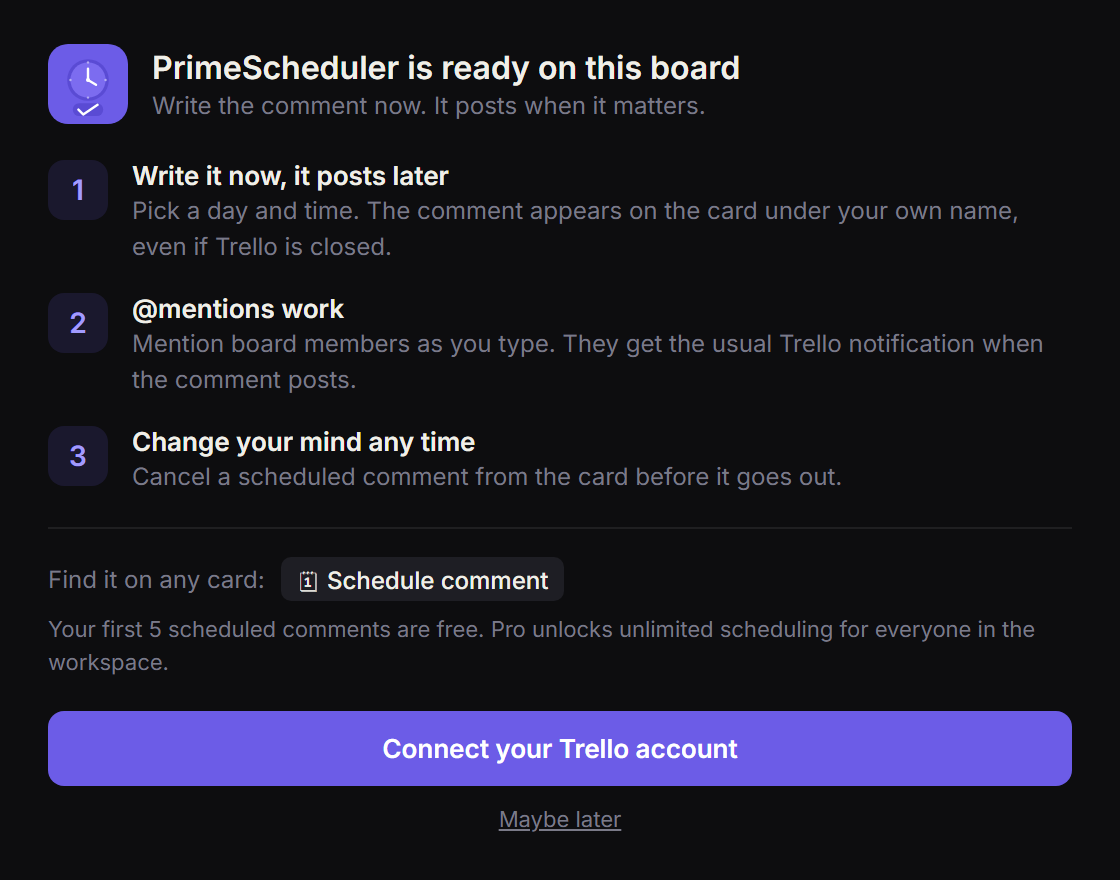
On the board, open Power-Ups, search for PrimeScheduler and click Add. A short welcome explains the basics.
-
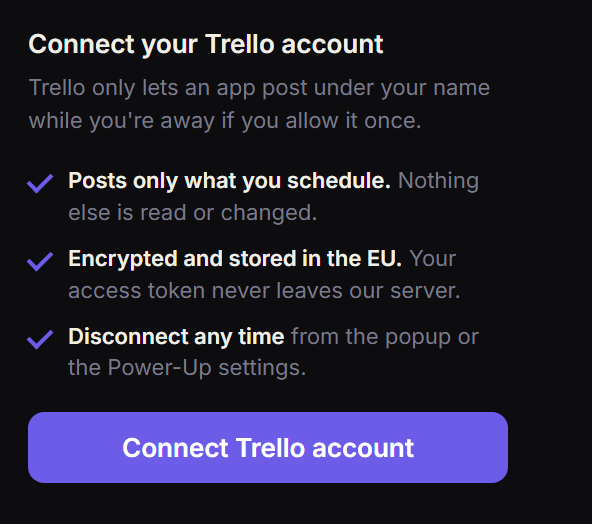
Connect your Trello account, once
Trello only lets an app post under your name while you’re away if you allow it. Click Connect your Trello account and confirm in the Trello window. You won’t be asked again.
-
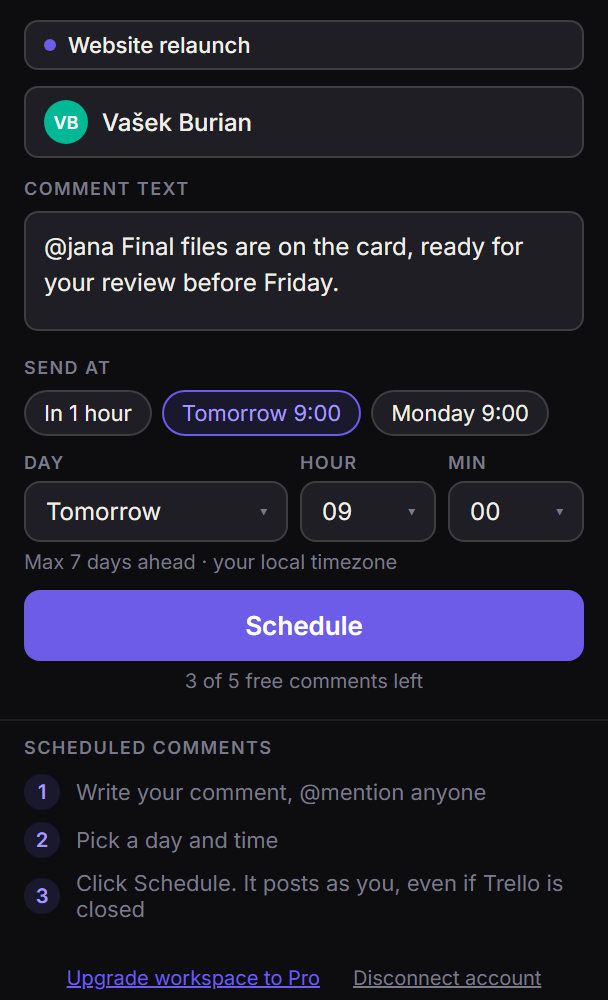
Write the comment and pick a time
Open any card and click Schedule comment. Write your comment and type @ to mention someone. Then pick a time: a quick pick like Tomorrow 9:00, or your own day, hour and minute. Click Schedule.
-
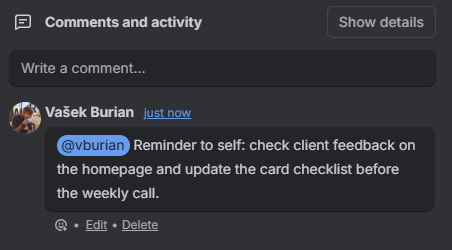
It posts on time, as you
At the chosen minute the comment appears on the card under your own name, and everyone you mentioned gets the usual Trello notification. Trello doesn’t need to be open.
Good to know
- Your local time. Times are in your time zone. Teammates elsewhere see the comment at the same moment, in their own time.
- Up to 7 days ahead. Longer scheduling is planned for a future version.
- A badge on the card, such as 1 scheduled, shows that a comment is waiting.
- Cancel any time before it posts: open the card, click PrimeScheduler and remove the comment with ×.
- Tied to your account. If you disconnect, comments that are still waiting are cancelled.
Free and Pro
| Free | Pro | |
|---|---|---|
| Scheduled comments | 5 per person, plus 2 for leaving your email | Unlimited |
| @mentions, cancel before posting | ✓ | ✓ |
| Who is covered | Each person on their own | Everyone in the Trello workspace |
| Price | $0 | $4.99 a month or $47.90 a year |
How to upgrade: open PrimeScheduler on any card in the workspace and click Upgrade workspace to Pro at the bottom of the popup. Pro covers the workspace of the board you upgrade from.
Cancel any time. Pro stays active until the end of the paid period, and there’s a 14-day money-back guarantee.
Privacy and disconnecting
PrimeScheduler stores your Trello access token encrypted (AES-256-GCM) on EU servers and uses it only to post the comments you schedule.
To disconnect, open the popup and click Disconnect account, or use the Power-Up settings on the board. This deletes the token and cancels comments that are still waiting. More on the Security page.
Questions
Does the comment post if my computer is off?
Yes. Scheduled comments are sent from PrimeScheduler’s servers, so Trello and your computer can be closed.
Can I edit a scheduled comment?
Not yet. Cancel it with × and schedule a new one.
Who sees the comment before it posts?
Only you, in the PrimeScheduler popup. It appears on the card for everyone at the scheduled time.
Does my team need to pay separately?
No. Pro covers everyone in the Trello workspace, so one subscription is enough.
What happens to scheduled comments when I reach the free limit?
Comments you already scheduled still post. The limit only applies when you schedule a new one.
Something missing? Write to me.