 PrimeScheduler
 EN
EN Čeština
 Polski
How to schedule a comment in Trello (4 ways)
 Václav Burian
· 5 min read
Trello has no "send later" button for comments. If you want a comment to show up on a card at 9:00 tomorrow, you can use a due date reminder, a Trello automation rule, a scheduled email to the card, or a Power-Up made for this. Each one fits a different situation.
Option 1: A due date with a reminder
If all you need is a nudge for yourself or the people on the card, a due date may be enough. Trello sends the reminder to everyone who is a member of the card or watches it.
- Open the card and click Dates.
- Set the due date and time.
- Choose when Trello should remind you, for example 1 hour before.
This works well for personal reminders and deadlines. Keep in mind that it's a notification, so you can't write a message, and people who aren't on the card or watching it won't get it.
Option 2: A Trello automation rule
Trello's built-in automation (it used to be called Butler) can post a comment when a rule fires, for example every Monday morning or a day before a card is due.
- Open the board and click Automation in the board header.
- Pick a calendar or due date rule and set when it should run.
- Add an action that posts a comment and write the text.
- If the rule runs on a schedule, tell it which cards to act on.
- Save the rule.
Rules are great for things that repeat, like a weekly "please update your status" comment. For a single comment they're a lot of setup, because every message needs its own rule, and automation runs are capped each month depending on your Trello plan. I compared the two approaches in more detail in Trello automation vs. PrimeScheduler.
Option 3: A scheduled email to the card
Every Trello card has its own email address, and whatever you send to it is added to the card as a comment from you. Combine that with "schedule send" in Gmail or Outlook and the comment arrives later.
- Open the card, click Share (or the card menu) and copy the card's email address.
- In Gmail or Outlook, write a new email to that address. Put the comment in the body and @mention people the same way as in Trello. Delete your email signature, otherwise it ends up in the comment.
- Instead of Send, choose Schedule send and pick the date and time.
It's free and you don't have to install anything, which makes it handy for the occasional delayed comment. @mentions work and people get the usual notification. The catch is that the whole email body becomes the comment, signature and quoted text included, so clean it up before scheduling. It also takes more clicks per comment than a button on the card. The address is tied to your account, so keep it to yourself.
Option 4: A Power-Up for scheduled comments
For one-off comments, a Power-Up is the quickest. PrimeScheduler adds a Schedule comment button to every card. Full disclosure: I built it.
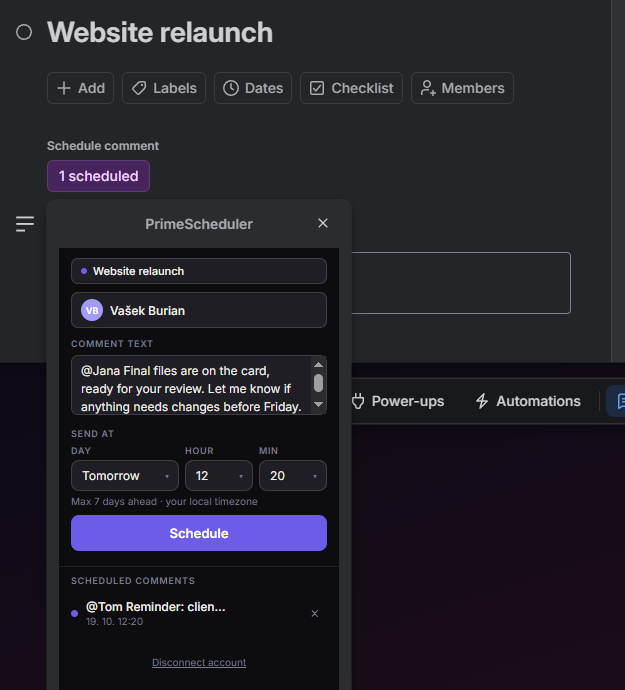
- Add PrimeScheduler to your board and connect your Trello account once.
- Open a card and click Schedule comment.
- Write the comment. Type @ to mention someone on the board.
- Pick the day, hour and minute.
- Click Schedule. The card shows how many comments are waiting, and you can cancel any of them before they go out.
At the time you picked, the comment is posted from your own Trello account, so it looks as if you'd typed it then, and mentioned people get a normal Trello notification. It's handy for handoffs, client updates during their business hours and reminders on the day something is due. You can schedule up to 7 days ahead. The first 5 comments are free, and Pro is $4.99 a month for the whole Trello workspace.
Which one should you use?
| Due date reminder | Trello automation | Scheduled email | PrimeScheduler | |
|---|---|---|---|---|
| Custom message | No | Yes | Yes | Yes |
| @mentions | No | Yes | Yes | Yes |
| Best for | Personal reminders | Recurring messages | Occasional one-offs | One-off comments |
| Setup per message | Seconds | A new rule | Copy address, write, schedule | Seconds |
| Price | Free | Included, with monthly limits | Free | 5 free, then $4.99/month per workspace |
Tips for scheduled comments
- Write for the moment the comment lands. "Tomorrow" or "tonight" in the text will be wrong by the time anyone reads it.
- Pick the time with the reader's day in mind. If they're in another time zone, aim for the start of their morning. There's a separate post on sending Trello updates across time zones.
- Mention the person who has to act. A comment nobody is tagged in is easy to miss.
FAQ
Can Trello schedule comments on its own?
Not as a one-off action. There's no send-later button for comments. Automation rules, a scheduled email to the card's address or a Power-Up like PrimeScheduler get you there.
Will the scheduled comment show my name?
With PrimeScheduler and with the email method, yes. The comment comes from your own Trello account and @mentions notify people as usual.
How far ahead can I schedule a comment?
PrimeScheduler goes up to 7 days ahead, in your local time zone. Gmail and Outlook let you schedule an email much further out, and automation calendar rules can run on any schedule you set up.
Is it free?
Due dates, reminders and emailing a card cost nothing. Trello automation is included but has a monthly limit on runs. PrimeScheduler gives you 5 scheduled comments for free, and Pro is $4.99 a month per Trello workspace.